GitHub Actions and How to Use Them
Introduction
In this article, I’m going to share and demo a solution that could help offload some of the toolings to GitHub. This is called GitHub Actions. The way it works is that you create actions in your repositories by creating one or more text files. These are called workflows.
Workflows can handle common build tasks, like continuous delivery and continuous integration. That means that you can use an action to compress images, test your code, and push the site to your hosting platform when the master branch changes.
You can also have tasks that run on a specific timeframe, or that control what happens when somebody interacts with the GitHub repository itself.

So, when someone makes a comment on a pull request, it can send you a note or you can run an action when somebody stars your project.
Actions can run in a variety of platforms, including Linux, macOS or Windows, and these will run on virtual machines or containers. That means you can test your code in different environments. You can even run matrix workflows so you can test on multiple platforms simultaneously.
Understanding Workflows
So, the main concept at the heart of GitHub actions is the workflow; this is done by creating a series of YAML files that contain a series of actions that determine your workflow in your repositories. These YAML files are stored in a special folder in the .github/workflows folder inside your repository. Here is an example:

At the moment, you can create up to 20 yaml files at this time, and each of the workflow files will respond to a specific event. In addition to that, each one of these workflows can have a number of jobs that perform different actions, and this is also where you specify the platform that you want to run the action under.
So, to demo this; I’m going to use my Analog clock project which is build with simple Javascript vanilla. I made my project repository a template. You can go ahead and create a repository from this template and have something to play around with.

https://github.com/YannMjl/Analog-Clock-JS
You can do this on your own projects if you want to, but it’s actually better to start off by creating a template repository or a brand new repository to play around with actions.
So let’s go ahead and add actions. The first time you create a workflow, Github provides some templates that you can use to create your first workflow based on your project repository. In this case, I’m going to add a Simple Workflow action.
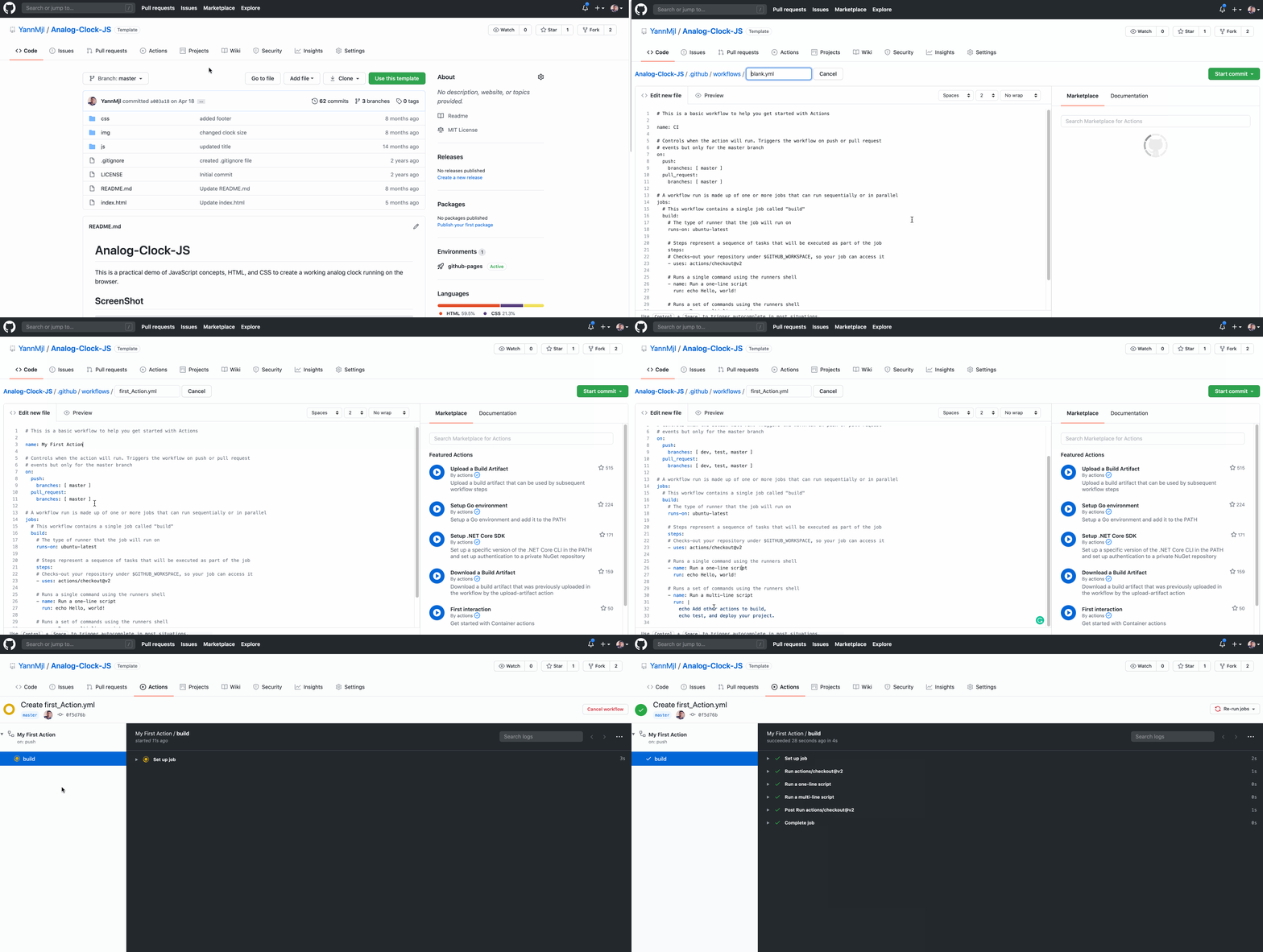
So A quick review of what I did to Set Up the simple workflow:
- This workflow will respond to a specific event which is the push event. So whenever somebody pushes something to this repository, it’s going to execute a series of jobs. I added dev, test and master branches because those are the branch I have set up in my repo.
- The first job that it’s going to execute is going to be called build, and we want this job to run on a Linux machine which will be a Ubuntu machine with the latest version, and then we define a series of steps:
# This is a basic workflow to help you get started with Actions
name: My First Action
# Controls when the action will run. Triggers the workflow on push or pull request
# events but only for the master branch
on:
  push:
    branches: [ dev, test, master ]
  pull_request:
    branches: [ dev, test, master ]
# A workflow run is made up of one or more jobs that can run sequentially or in parallel
jobs:
  # This workflow contains a single job called "build"
  build:
    # The type of runner that the job will run on
    runs-on: ubuntu-latest
    # Steps represent a sequence of tasks that will be executed as part of the job
    steps:
    # Checks-out your repository under $GITHUB_WORKSPACE, so your job can access it
    - uses: actions/checkout@v2
    # Runs a single command using the runners shell
    - name: Run a one-line script
      run: echo Hello, world!
    # Runs a set of commands using the runners shell
    - name: Run a multi-line script
      run: |
        echo Add other actions to build,
        echo test, and deploy your project.
Now, depending on what you’re trying to do; you can edit the YAML file and the different steps or actions. So that’s how you create the most basic action using an existing template. Now, Let’s dig into some of the other features of actions.
Triggering actions
There are different types of events that you can call for whenever you’re working with an action:
- Workflow
- Scheduled
- Webhooks
- External
These workflow events manage the triggering of the actions. Something like a push, a pull request, or a fork that refers to changes in the repository.
Another type is something called a webhook event. That means some action that GitHub performs, like when somebody stars your repo or when a Wiki page gets created or edited.
you can have an event triggered by an external process outside of GitHub. That’s called a repository dispatch event. And you would use that when you want something external to communicate back with your GitHub repo
To learn more about the full GitHub Actions documentation on workflows, please see the configuration workflows.
GitHub Action Job
Now, even though you can run only up to 20 workflows per repository, you can run one or multiple jobs for each workflow. Since each workflow can have one or more jobs, each job is identified by an ID label, a unique name that starts with a letter or underscore and contains only alphanumeric characters plus a hyphen or an underscore.
By default, Jobs run in parallel unless you ask one job to wait until another job is finished. Each job can also run on different machines or on an array of machines. You can pass along a number of environment variables that will be available to every job. If you want to use environment variables in more than one job, you can place that at the same level as the job object.
You can also run a job only if it meets certain conditions. Each job will also have a series of steps and these are a sequence of tasks that you want the job to perform.
Expression and Context
The most important information about your repository is stored inside a GitHub object, but there’s a few other, what are called contexts, that you can use, including information about the job that is running or the steps that are currently running as well.
There’s also a very special and pretty useful context called secrets, which lets you store information in GitHub itself that won’t be seen by anyone else, including other people in your repository. To learn more visit Context and expression syntax for GitHub Actions.
Now let’s say that I have a project that I wan to deploy in my master branch which is my production branch. I’ll add steps and restrictions related to whatever I’m trying to do in a job.
Now, let’s added:
- a second job called “deploy”
- “*environment variables”, *name and full name
- if condition to run the deploy job only when the build job is completed successfully
- and only run the deploy job on pull request
- a show_context job that displays in JSON format all the GitHub context
- the name of the person who committed the code
Our YAML file now looks like this:
# This is a basic workflow to help you get started with Actions
name: My First Action
# Controls when the action will run. Triggers the workflow on push or pull request
# events but only for the master branch
on:
  push:
    branches: [ dev, test, master ]
  pull_request:
    branches: [ dev, test, master ]
# A environment variable accsible to all jobs
env:
  name: Yann
# A workflow run is made up of one or more jobs that can run sequentially or in parallel
jobs:
  # This workflow contains 2 jobs job called "build and deploy"
  build:
    # The type of runner that the job will run on
    runs-on: ubuntu-latest
    # added an name env variable (Only accessible to the build job)
    env:
      fullname: Yannick Mulonda
    # Steps represent a sequence of tasks that will be executed as part of the job
    steps:
    # Checks-out your repository under $GITHUB_WORKSPACE, so your job can access it
    - uses: actions/checkout@v2
    # Runs a set of command using the runners shell
    - name: Run a one-line script
      run: |
        echo Hello, world!
        echo My name is $fullname but I go by $name
        echo Actor: $
        echo This code was committed by: $

  show_context:
    runs-on: ubuntu-latest
    steps:
      - env:
          GITHUB_CONTEXT: $
        run: echo "$GITHUB_CONTEXT"

  # This is "deploy" that's responsable for deploying our app
  deploy:
    # The type of runner that the job will run on
    runs-on: ubuntu-latest
    # only run if on pull request
    if: github.env_name == 'pull_request'
    # Steps represent a sequence of tasks that will be executed as part of the job
    steps:
    # Checks-out your repository under $GITHUB_WORKSPACE, so your job can access it
    - uses: actions/checkout@v2
    # Runs a set of commands using the runners shell
    - name: Run a multi-line script
      run: |
        echo hello! my name is $name, nice to meet you!
        echo Add other actions to build,
        echo test, and deploy your project.
  # Deploy if the app is build successfully
  deploy_if_build:
    # The type of runner that the job will run on
    runs-on: ubuntu-latest
    # only run if build job complte successfully
    needs: [build]
    #test the app on many matrix and different version of nodeJS (e.g)
    strategy:
      matrix:
        node-version: [10.x, 12.x, 14.x]
    steps:
    - uses: actions/checkout@v2
    - name: Use Node.js $
      uses: actions/setup-node@v1
      with:
        node-version: $
    - run: |
        echo "hello world"
        echo test, and deploy your project.
Actions can run on any language, including Node.js, Rust, Python, PHP and lots more. Every action creates detailed logs that can be used to troubleshoot deploys in realtime while your actions are running.
GitHub Actions has a very strong community of developers with several templates of prebuilt actions, examples, and workflows so you don’t have to start from scratch. Feel free to play with it and get familiar so you can leverage this amazing tool.
Mulonda, Y. (2020, July 06). What are GitHub Actions and How to Use Them. Retrieved November 10, 2020, from https://blog.bitsrc.io/what-are-github-actions-and-how-to-use-them-e89904201a41